
This post is part of a series that will teach you to use Python if you come from Java. I highly recommend you start from here if you don’t know o only has a little bit of Python knowledge. Let’s begin.

Python REPL
In Python, REPL stands for Read-Eval-Print-Loop, which is an interactive programming environment that processes Python commands one at a time. Here’s what happens in each step:
- Read: The REPL reads the input provided by the user (a Python expression or statement).
- Eval: It evaluates (executes) the input as Python code.
- Print: The result of the evaluation is printed back to the user.
- Loop: This process repeats, allowing the user to continue entering commands and seeing immediate results.
This tool is useful for testing small snippets of code, debugging, and learning Python interactively.
Python has a basic build-in REPL. However if you are following the Learn Python if you come from Java series. Let me tell you that we had already installed a REPL, yes it is Jupyter. In the Jupyter context the REPL are called notebooks.
Opening a REPL or Notebook in VS Code
In the previous post Installing Jupyter and VS Code for Python development we have installed VS Code and Jupyter. If you didn’t installed you can install it following that post.
Now open VS Code, go to the menu File > New File. You will be presented with some choices is possible that you only have three options or more. In this case you need to select the Jupyter Notebook option.
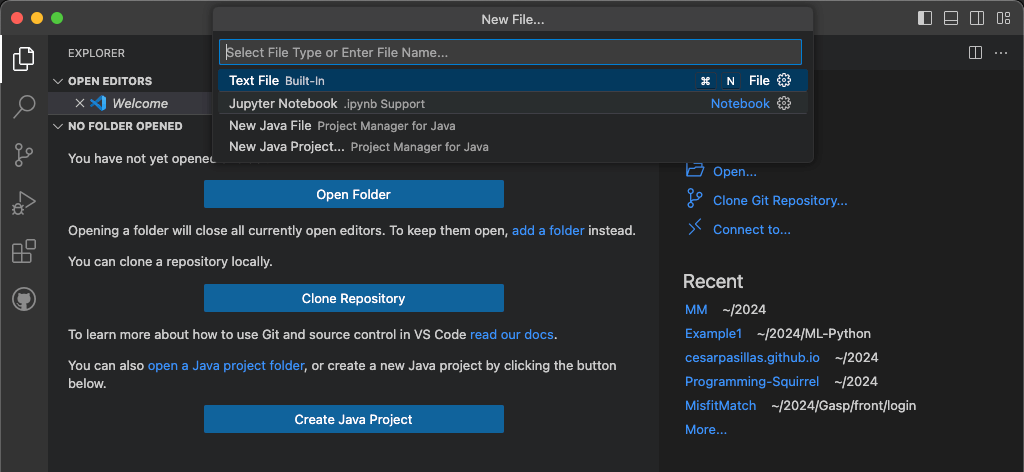
VS Code will create and open a new untitled notebook file called Untitled.ipynb (ipynb stands for “Interactive PYthon NoteBook”), which appears on the screen.

Now you are ready have fun, you only need to type in and run some Python code. Type in the notebook the next code:
print("Hello, World. This is our first Python code.")Then run the code pressing the play icon  .
.
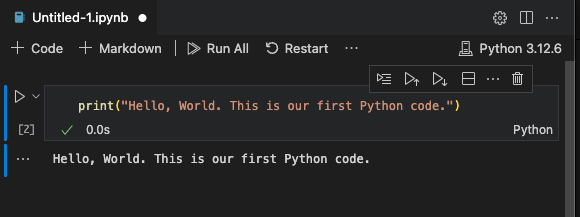
If all is good, you will be able to see the message. This message is the one that you set in your print function (Method in Java). Play with the note book adding different text in the print function.
You can add more Python code adding more cells clicking the + Code  button. Let’s try with another
 print function.
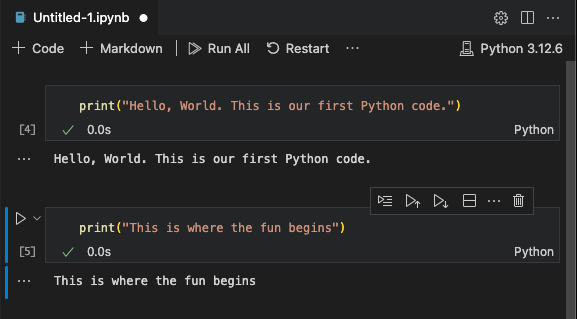
You can run all the cells clicking the Run All  button. In the case that you need to run all the blocks.
Now, what do you think? It looks easy right?. If you come from Java maybe the REPL or the Jupyter notebook make you remember the Java JShell. Both tools help with learning, debugging, and experimenting with code in their respective languages.
That’s all for today folks, I see you in the next post.
Happy Learning!!!
 About Programming Squirrel
Leave a comment