

This post is part of a series that will teach you to use Python if you come from Java. I highly recommend you start from here if you don’t know o only has a little bit of Python knowledge. Let’s begin.
You already have installed Python. (If you don’t have installed Python yet, you can follow my recommendation in the post Installing Python). But installing python is not enough. Besides that we have Python IDLE, you will need extra tools to explore and learn Python. These tools include Jupyter and an any Text Editor.
NOTE: In the moment we write this post I recommend you Microsoft Visual Studio Code known as VS Code.

What is Jupyter?

The jupyter.org documentation says: “Jupyter”, or “Project Jupyter” is a large umbrella project that covers many different software offerings and tools. That includes Jupyter Notebook and JupyterLab, which are both popular notebook-editor programs. I don’t want to go deeper right now in Jupyter Notebook and JupyterLab. I’m going to do that later in other post.
Before to continue I need to explain a little bit the difference between Jupyter Notebook and Jupyter Notebook back-end. The difference lies in their roles and functionalities. Jupyter Notebook is the front-end. Is what you see and interact with, and Jupyter Notebook back-end is the engine behind Jupyter Notebook. It handles the execution of your code and manages the necessary resources behind the scenes.
For the purpose of this series. We only need to install in our computers Jupyter Notebook back-end. Because you need the engine that provides the core services, APIs, and REST endpoints for Jupyter web applications. In other words is the engine that makes everything work behind the scenes.
Here’s a clearer explanation of it’s purpose:
- Code Execution: The back-end is responsible for executing the code you write in the notebook cells. This is done through “kernels,” which are processes that run the code in different programming languages, like Python.
- Resource Management: It manages the resources needed to execute the code, like memory and processing.
- User Interaction: It provides the web interface you see in your browser. Allowing you to write and execute code, as well as view the results interactively.
- Extensions and Customization: It allows adding extra functionalities through extensions. Like tools for data visualization or integration with other services.
Installing Jupyter Notebook back-end?
Now that we have a little information about Jupyter, you need to install Jupyter Notebook back-end. So, open a terminal and introduce the next command:
python3 -m pip install jupyterAfter execute the command, you will see the Successfully installed message like is show below, you are good to continue.
Successfully installed anyio-4.5.0 appnope-0.1.4 argon2-cffi-23.1.0 argon2-cffi-bindings-21.2.0 arrow-1.3.0 asttokens-2.4.1 async-lru-2.0.4 attrs-24.2.0 babel-2.16.0 beautifulsoup4-4.12.3 bleach-6.1.0 certifi-2024.8.30 cffi-1.17.1 charset-normalizer-3.3.2 comm-0.2.2 debugpy-1.8.5 decorator-5.1.1 defusedxml-0.7.1 executing-2.1.0 fastjsonschema-2.20.0 fqdn-1.5.1 h11-0.14.0 httpcore-1.0.5 httpx-0.27.2 idna-3.10 ipykernel-6.29.5 ipython-8.27.0 ipywidgets-8.1.5 isoduration-20.11.0 jedi-0.19.1 jinja2-3.1.4 json5-0.9.25 jsonpointer-3.0.0 jsonschema-4.23.0 jsonschema-specifications-2023.12.1 jupyter-1.1.1 jupyter-client-8.6.3 jupyter-console-6.6.3 jupyter-core-5.7.2 jupyter-events-0.10.0 jupyter-lsp-2.2.5 jupyter-server-2.14.2 jupyter-server-terminals-0.5.3 jupyterlab-4.2.5 jupyterlab-pygments-0.3.0 jupyterlab-server-2.27.3 jupyterlab-widgets-3.0.13 markupsafe-2.1.5 matplotlib-inline-0.1.7 mistune-3.0.2 nbclient-0.10.0 nbconvert-7.16.4 nbformat-5.10.4 nest-asyncio-1.6.0 notebook-7.2.2 notebook-shim-0.2.4 overrides-7.7.0 packaging-24.1 pandocfilters-1.5.1 parso-0.8.4 pexpect-4.9.0 platformdirs-4.3.6 prometheus-client-0.20.0 prompt-toolkit-3.0.47 psutil-6.0.0 ptyprocess-0.7.0 pure-eval-0.2.3 pycparser-2.22 pygments-2.18.0 python-dateutil-2.9.0.post0 python-json-logger-2.0.7 pyyaml-6.0.2 pyzmq-26.2.0 referencing-0.35.1 requests-2.32.3 rfc3339-validator-0.1.4 rfc3986-validator-0.1.1 rpds-py-0.20.0 send2trash-1.8.3 setuptools-75.1.0 six-1.16.0 sniffio-1.3.1 soupsieve-2.6 stack-data-0.6.3 terminado-0.18.1 tinycss2-1.3.0 tornado-6.4.1 traitlets-5.14.3 types-python-dateutil-2.9.0.20240906 uri-template-1.3.0 urllib3-2.2.3 wcwidth-0.2.13 webcolors-24.8.0 webencodings-0.5.1 websocket-client-1.8.0 widgetsnbextension-4.0.13If you have problems you can refer to the Jupyter documentation to install Jupyter.
VS Code
Microsoft Visual Studio Code (often referred to as VS Code) is a free and lightweight code editor. It is also powerful. This editor was developed by Microsoft. It’s designed for building and debugging modern web and cloud applications. As I mentioned before, at the moment that I write this post VS Code is the most popular IDE. So, let’s use it.
To install it, grab you favorite browser and introduce the URL (https://code.visualstudio.com/Download) to download VS Code. Then select your VS Code version compatible version for your computer and follow the instructions. If you want to know more of VS Code you can refer the documentation.
Configuring VS Code
Open your VS Code, and open the Preferences > Settings to see a window like this:
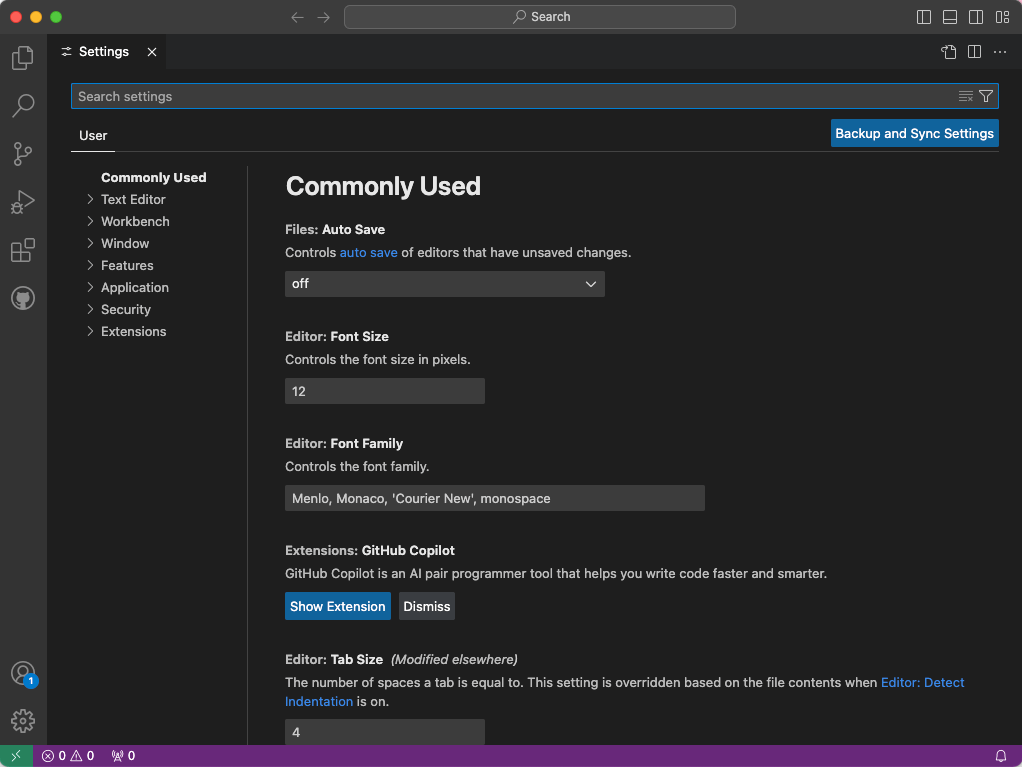
In this window, you can setup your editor as you wish. Changing the Font Size or enabling the Auto Save, etc. Now you need to install some VS Code extensions: Python and Jupyter. In the lateral menu select the extensions icon  to open the Extensions window.
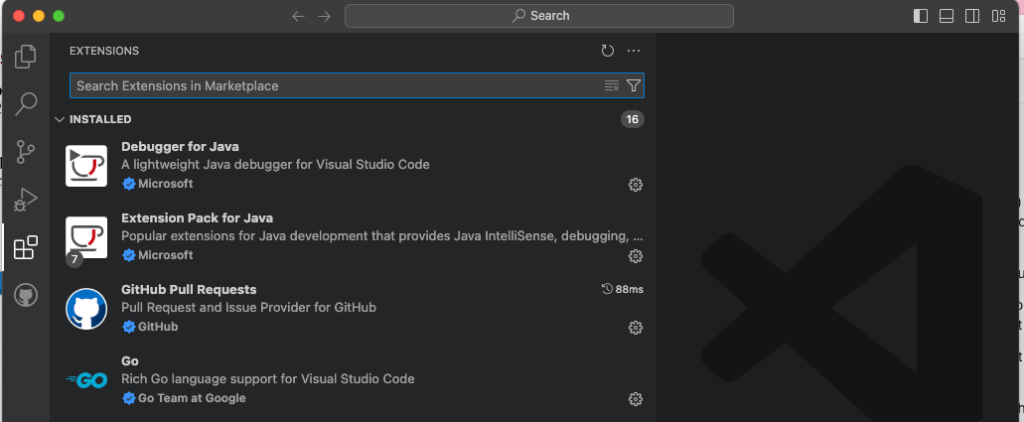
Python Extension
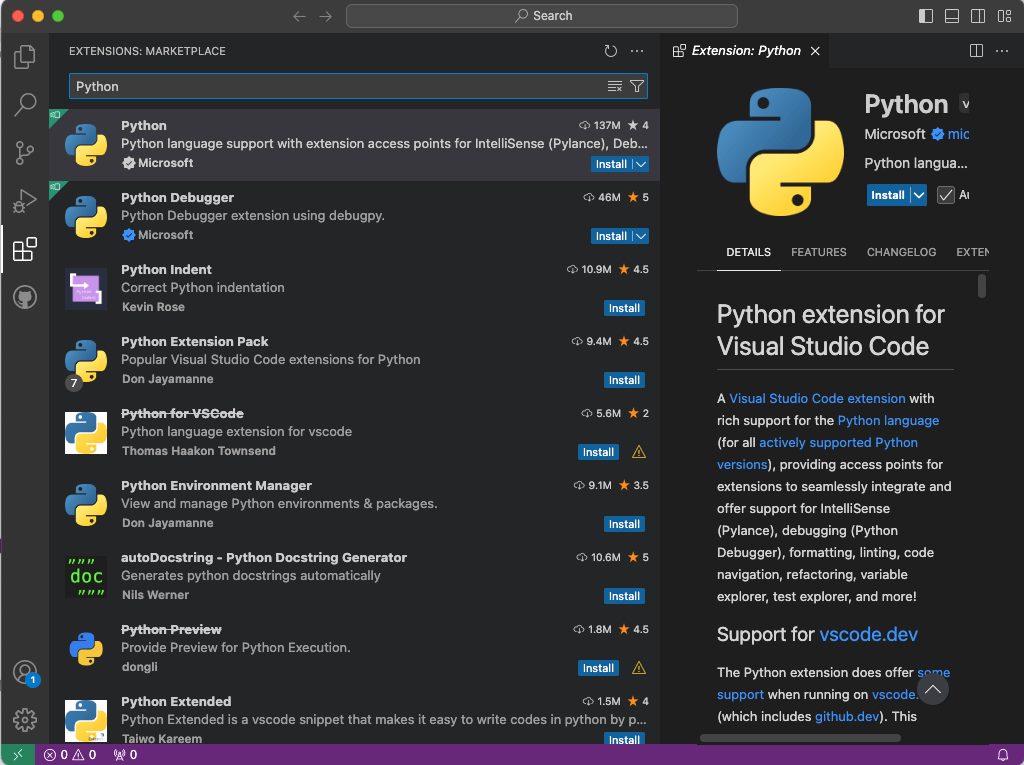
The Python extension, provides VS Code a rich support for Python language. Now type Python in the Search Extensions in Marketplace input. You will be see the Python available extensions displayed in the windows. I recommend to install the Microsoft extensions, now only click in install and wait the installation finish.
Jupyter Extension
Jupyter extension provides basic notebook support for language kernels that are supported in Jupyter Jupyter Notebooks. Also, it allow the Python environment to be used as Jupyter Kernel.
Lastly, we need to install the Jupyter Extension, type Jupyter in the Search Extensions in Marketplace input. Again I recommend to use the Microsoft extensions. Now install it by clicking in the install button and wait the installation finish.

Now, with Python, Jupyter Notebooks back-end and VS Code you are all set.
If you have been using VS Code before or used before (with Java or other language). It will be a piece of cake installing these extensions. Now you are an step closer to learn Python, see you in the next.
Happy Learning!!!
 About Programming Squirrel
Leave a comment